🎉 Black Friday Sale – Up to 80% OFF 🎉
0
days
00
hr
00
min
00
sc
Windows 11 has been the talk of the town ever since Microsoft announced its release. With its new and improved features, it promises to elevate the user experience to a whole new level. One such feature is cascading windows, which allows you to organize multiple open windows on your screen.
In this step-by-step guide, we will discuss how you can cascade windows in Windows 11 and make the most out of this new feature.
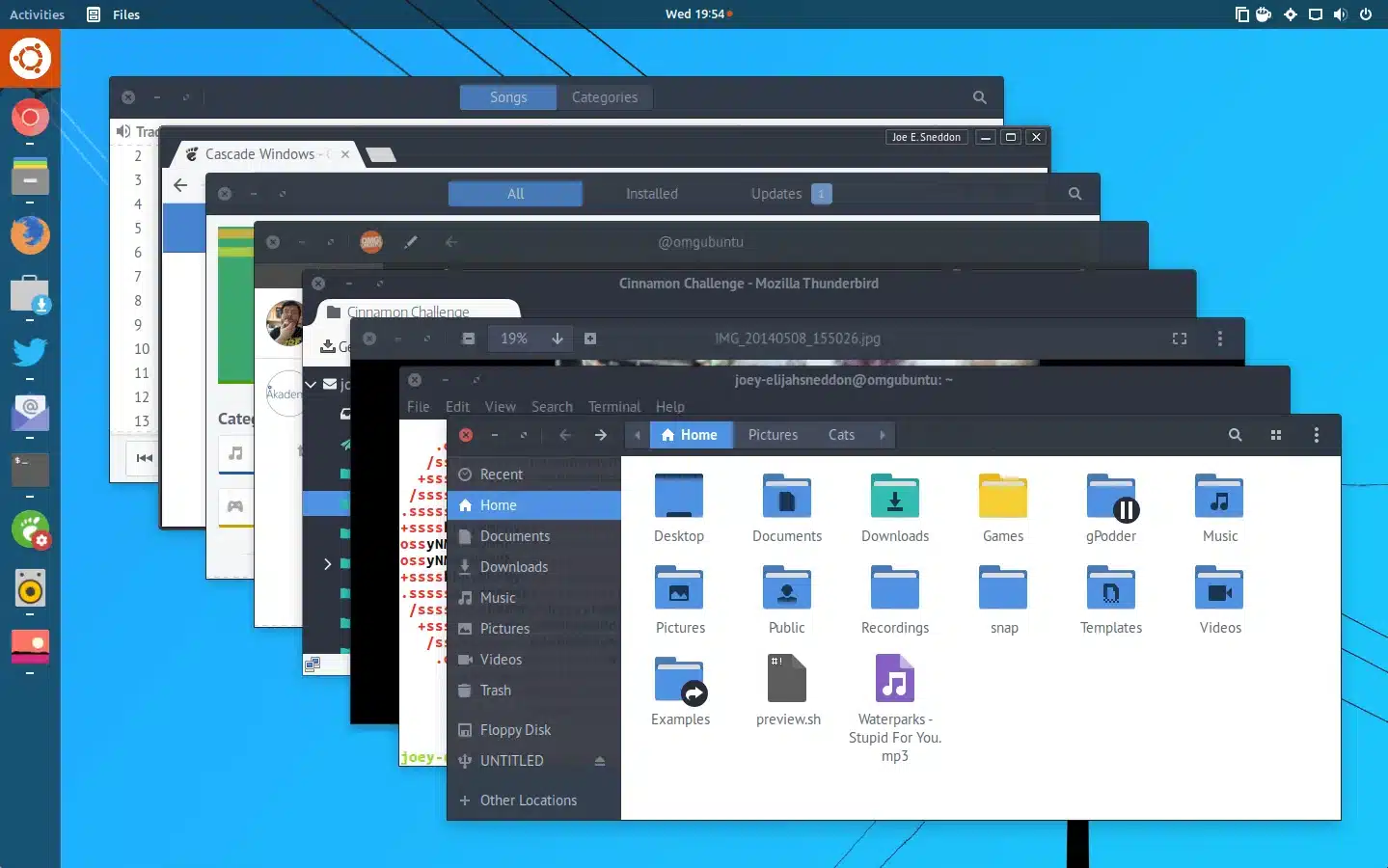
Cascading windows is a feature that allows you to neatly arrange all your open windows on your screen. It automatically resizes and arranges the windows in an overlapping layout, making it easy for you to view and access multiple windows at once. This can be especially useful when you have multiple applications open and need to switch between them frequently.
The first step is to open multiple windows that you want to cascade. Right-click an empty space on the Taskbar and click “Show windows stacked” or “Show windows side by side.” This will automatically take all the opened windows and organize them side by side. You can also use the keyboard shortcut, “Windows key + , (comma)” to cascade windows in Windows 11.
Once you have opened multiple windows, you can stack them horizontally or vertically. Simply, right-click an empty space on the Taskbar, and click “Cascade windows.” This will automatically align all the opened windows one after another, making them easier to view and access.
Windows 11 allows you to customize your cascade windows. Once you’ve cascaded your windows, you can resize them by dragging the borders or use the maximize button to adjust the size of each window. You can also change the order of the windows by dragging and dropping. The windows will rearrange themselves according to your preference.
In some instances, you might find it challenging to switch between windows when they are cascaded. To switch between the windows, hover your cursor over the minimized windows, and the windows will enlarge automatically. Select the one you want to access, and it will open in large size.
Once you are satisfied with the cascade windows, you can minimize them by clicking the minimize button and restore them by clicking the Taskbar icon. You can also close them by clicking the “X” button in the upper-right corner of the window. This will only close the selected window and keep other windows in cascade mode.
Cascading windows is a great feature that Windows 11 provides to help you stay organized and efficient. It simplifies multitasking, especially when you are handling multiple tasks simultaneously. By following the above step-by-step guide, you can create a cascade of windows on your screen in Windows 11 in no time. Additionally, you can customize cascade windows to your preference, switch between them, or minimize and close them whenever necessary. We hope this guide has been informative and helpful to you. Happy multitasking!

 Best Design Portfolio Websites For Professionals
£49.99 – £99.99Price range: £49.99 through £99.99
Quikdaz | Worldwide Software Deals | Leading Digital Services
Best Design Portfolio Websites For Professionals
£49.99 – £99.99Price range: £49.99 through £99.99
Quikdaz | Worldwide Software Deals | Leading Digital Services
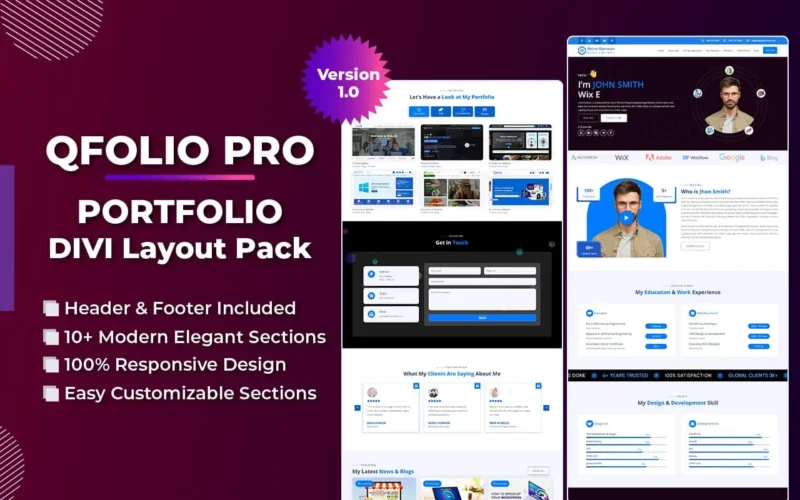 QFolio | Personal DIVI Premium Portfolio Layout Pack
£14.99
QFolio | Personal DIVI Premium Portfolio Layout Pack
£14.99
 The domain name & Website petoranest.com is for Sale
£599.99
The domain name & Website petoranest.com is for Sale
£599.99
 Print Ready Be Kind T-shirt Design Template
£4.99
Print Ready Be Kind T-shirt Design Template
£4.99
 Print Ready Born Free, Staying Brave T-shirt Design Template
£4.99
Print Ready Born Free, Staying Brave T-shirt Design Template
£4.99
 Enjoy Shopify Frist 3 Days Free Trail and 1 USD Per Month For your First 3 Months
£0.00
Enjoy Shopify Frist 3 Days Free Trail and 1 USD Per Month For your First 3 Months
£0.00
 Flatsome | Multi-Purpose Responsive WooCommerce Theme Including License Key & Lifetime Updates
£59.00
Flatsome | Multi-Purpose Responsive WooCommerce Theme Including License Key & Lifetime Updates
£59.00
 Betheme | Responsive Multipurpose WordPress & WooCommerce Theme Including License Key & Lifetime Updates
£59.00
Betheme | Responsive Multipurpose WordPress & WooCommerce Theme Including License Key & Lifetime Updates
£59.00
 Avada | Website Builder For WordPress & eCommerce Including License Key & Lifetime Updates
 Nitro PDF Pro 14 (PDF Editor) Official License Key For Lifetime
 Customize Name Official Microsoft Power Bi Pro Account For Lifetime
 Get WoodMart – Multipurpose WooCommerce Theme Unlimited Website Without Key
 Custom Username Office365 Pro Plus 1 Account For 5 Windows/Mac/Tablet With 100GB OneDrive Storage
 LinkedIn Premium Business Redeem Gift Card For 12 Months

No account yet?
Create an Account