🎉 Black Friday Sale – Up to 80% OFF 🎉
0
days
00
hr
00
min
00
sc
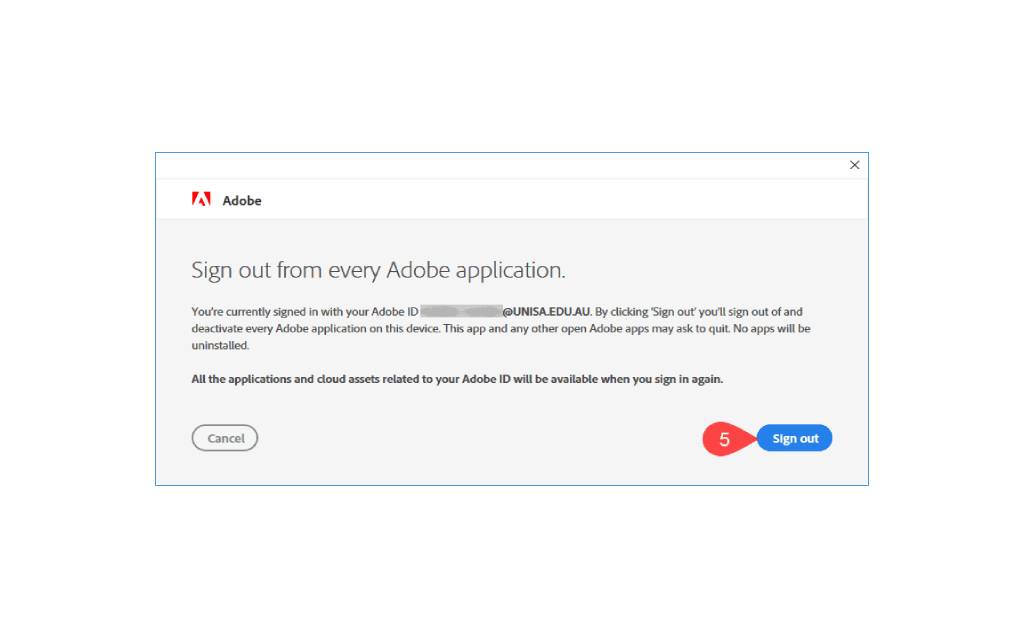
How to Sign Out of Adobe Creative Cloud: Adobe Creative Cloud has become the hub of creativity for millions of designers, artists, and professionals worldwide, offering a suite of powerful tools and services. While the focus is often on what you can create, it’s also critical to understand how to manage your account properly, especially when it comes to signing out. Whether you’re looking to sign out for security reasons, manage your device limits, or simply need a refresher, here’s a quick guide on how to effectively log out of your Adobe Creative Cloud account.
Signing out of your Adobe Creative Cloud account entails more than just closing your browser or application. It’s the act of ending your current session, ensuring that your data and account information are protected when you leave a shared or public workstation. Additionally, signing out allows you to manage the devices that are actively logged into your account, which is crucial for maintaining security and abiding by software usage protocols.
Remember, your Adobe account license may have limitations on the number of active devices, so signing out can also help you free up space to use on another computer or device. Acknowledging the significance of proper sign-out procedures is the first step to responsible Adobe account management.
Below, we detailed the essential steps to sign out of Adobe Creative Cloud to empower you with the know-how to make a smooth log-out process a regular part of your digital workflow.
To begin the sign-out process, launch the Adobe Creative Cloud desktop application on your computer. If you don’t have it already, you can download it from Adobe’s website. The app serves as your central interface for managing Adobe software, updates, and, of course, your account settings.
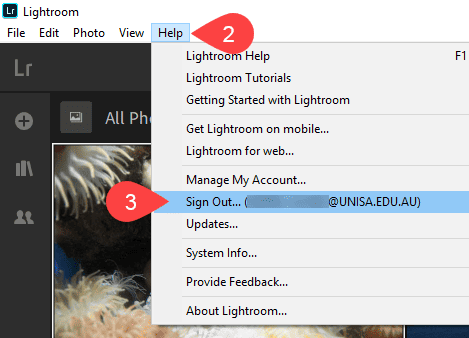
Once the Creative Cloud application is open, look for the profile icon in the top right corner. It’s usually the silhouette of a person. Click on it to reveal a dropdown menu, where you should see an option to “Sign Out.”
Select “Sign Out,” and your Creative Cloud software will guide you through the steps to finalizing the process. Depending on your subscription level, you might be prompted to enter confirmation details, such as a password, to ensure the security of the sign-out request.
After following the prompts and observing the process, you should see a confirmation message that you’ve successfully signed out. Double-check that all Adobe services on your current device are no longer accessible, to ensure that you’ve disconnected fully.
Shutting down your Adobe Creative Cloud session can bring significant advantages aside from the immediate security improvements. When you sign out, you also:
How to Sign Out of Adobe Creative Cloud: Creative endeavors often revolve around what’s created and shared, but it’s wise to remember that the digital infrastructure supporting these endeavors deserves equally careful consideration. Safeguarding your Adobe Creative Cloud account is as crucial as mastering the tools it provides. By following this simple sign-out process, you can maintain control over your account and use the powerful tools of Adobe with peace of mind.
In conclusion, the transparency of your Adobe Creative Cloud account management reinforces a professional standard of digital ethics, and it’s a practice embraced by all levels of users in the creative community. Make sure to familiarize yourself with these steps and use them routinely, and you’ll be one step closer to a more secure and efficient digital workflow. After all, the more you understand and manage your Adobe account, the more you can focus on what matters most—your creative projects.















No account yet?
Create an Account